

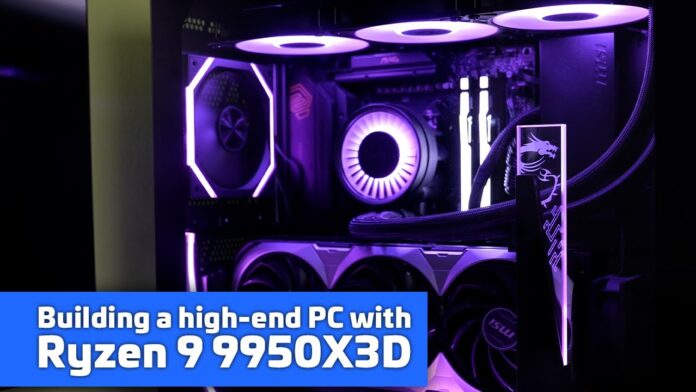
When you power on a new PC for the very first time and everything lights up, there’s always a bit of magic in that moment. That’s exactly where I am now – a table full of hardware that’s about to turn into a finished computer, and you’ll see the whole process step by step.
Before we dive into the build itself, an important note: I received the power supply and case thanks to a collaboration with MSI Poland, and the RAM and NVMe SSD thanks to a collaboration with Kingston Poland. I bought everything else myself. I’ve tested and reviewed all these components in detail on my blog – you’ll find the links in the video description.
Now, let’s start from the beginning.
For the first few minutes, we’re just unboxing one box after another. This is exactly the part all enthusiasts love: the smell of new hardware and that sound of peeling off protective film. After a moment, the heart of the whole build lands on the table – the MSI MAG X870 Tomahawk WiFi motherboard. A solid piece of PCB made for higher-end builds focused on both performance and stability.
Right away, you notice the massive VRM and M.2 heatsinks, as well as the sensible layout of connectors all around – there’s room for fast SSDs, PCIe that doesn’t throttle top-tier GPUs, and a good set of modern ports for future expansion. It’s a platform that has no problem with powerful CPUs, high RAM clocks, and heavy 24/7 workloads.
I remove the protective cover from the CPU socket and drop the processor in – in my case, a beast built for gaming and work: the Ryzen 9 9950X3D. Sixteen cores that can comfortably boost up to 5.8 GHz. I love this moment of focus: the socket cover coming down precisely, the latch, and… it’s in.
Kingston FURY Renegade G5
Right next to it go the NVMe drives. The new, fast Kingston FURY Renegade G5 goes into the main slot – this will be my main system and “apps” workhorse. You’ll find a full review of this drive on the blog, but in short: it combines great sequential performance with strong real-world behavior – app launches, large video projects, game libraries. And thanks to its updated design, it doesn’t run too hot.
On top of that, I move over two proven NVMe drives from my previous PC. As you’ll see in the shots, this board has a lot of room for SSDs and serious heatsinks that press firmly onto the controller and memory chips and actually do their job. No need for extra plates or funky brackets – you install, tighten, and you’re done.
MSI MPG A1000G PCIe 5
Time for power. I’m unboxing the MSI MPG A1000G PCIe 5 – a unit that’s meant to be quiet, stable, and ready for the power draw of modern GPUs. In the whole setup, this is the part that shouldn’t be a hero – and that’s exactly right, because a good PSU should just quietly do its job in the background.
Here we’ve got the right cables for new graphics cards, enough headroom for a strong CPU and GPU, and solid acoustics that I already analyzed in detail in the blog review. I slide the power supply into the case and immediately route the cable bundles through the areas where they won’t be visible. In this chassis it’s very easy to hide cables – I appreciated that right away.
MSI MPG Gungnir 300P Airflow
Speaking of the case: this is the MSI MPG Gungnir 300P Airflow – a design that combines strong airflow with flexible mounting options. Inside, there are clever cable channels and plenty of tie-down points for zip-ties, so cable management feels more like a pleasant puzzle than a fight.
On the side, there are special bays for 2.5″ SSDs – four trays that simply “disappear” from the main chamber. You don’t see the drives from the showcase side, and all the cables run behind the motherboard tray where they belong. The front and top are mesh panels optimized for cooling, with magnetic dust filters – you pull them out, clean them, snap them back in, no drama.
In the case review I go into detail about how many and what type of fans are included and where you can add more, and how that affects the system – here I’ll focus on what you see: intake at the front, exhaust at the rear and top, and that extra tilting bracket with a fan you can aim directly at the GPU. I’ll admit, how useful this is depends a lot on the specific card and airflow pattern inside – in my setup it’s more “nice to have” than “must have,” but I don’t mind leaving it there.
ARCTIC Liquid Freezer III Pro 360 A-RGB
Since we’re talking about cooling, it’s time for the AIO. I went with the ARCTIC Liquid Freezer III Pro 360 A-RGB – in my tests it came out best in the “performance-to-price” category for high-end CPUs, and the manufacturer isn’t afraid of non-standard solutions that actually work.
In this case, there’s plenty of room up top, so installing a 360 mm radiator is no big deal – the rad and fans go onto the top, and the whole panel is mesh with a magnetic dust cover. I use the included thermal paste on the CPU, position the cold plate, apply pressure, tighten the brackets and screws – and the pump block is in.
To finish it off, the magnetic decorative cover goes on the pump block – a rotor-like element that nicely ties everything together with the rest of the case lighting. And this is the moment when you see why I chose this cooler: the noise levels and temperature control under long loads don’t sound like a drone hovering in your room.
Back to the case interior for a moment, because cable management really matters here. This chassis makes it easy to route the 24-pin, CPU 8-pins and PCIe leads to the GPU. The channels are wide and the grommets are rubberized, so nothing rubs or looks like a tangled bowl of spaghetti. From the front, you barely see any power cables for the drives; from the back, everything is neatly cinched with Velcro straps and zip-ties. If you like a clean look, this case really helps you achieve it.
MSI GeForce RTX 4080
Now for the GPU. From my previous build, I’m moving over an MSI GeForce RTX 4080 – a card that still handles 4K gaming easily and is excellent for video rendering. This case gives you a nice option: you can mount the card in the traditional horizontal way, or rotate it 90 degrees using the included adapter and show it off vertically. All the necessary parts are in the box, no need to hunt for extra brackets.
I’m going with a vertical mount here, because aesthetics do matter – although I’ll admit my particular card doesn’t have RGB lighting, and now I slightly regret it, because the visual effect could be even more impressive. I picked it for the previous build, where I had no RGB at all.
There’s another detail I like: the removable rear shroud with two fans, which makes mounting easier and improves airflow around the GPU. And that generic anti-sag bracket you usually get with cards? Not needed here – this case has a dedicated, decorative, illuminated GPU support that does the job better and looks better. That’s the kind of engineering I appreciate: not just “so it works,” but also “so it looks good.”
Kingston FURY Beast DDR5 RGB
With the GPU in, it’s time to add memory. If you’re building a high-performance PC and you care about real gains in games, creative apps and multitasking, while also wanting the system to look great, Kingston FURY Beast DDR5 RGB is a very good choice. This is a higher-end kit – solid specs and build quality, some headroom for now and the future, and RGB that really makes an impact.
I click the modules into the recommended slots according to the motherboard manual – click, click, done. For those curious: I set the final EXPO/XMP profile later in the BIOS, because that’s simply best practice – first get a stable POST, then enable profiles and overclocks.
Let’s jump briefly to storage in 2.5″ format. On the “hidden” side of the case, there are four clever trays where I mount 2.5″ SSDs. It’s a perfect place for project archives, capture footage, photo libraries, or just a second storage tier for games. From the front, you see nothing; from the back, everything is accessible and organized. These kinds of details really matter when you’re building a PC not just for one purpose, but for work and play at the same time.
Cables are tied down, wires are routed, PCIe leads to the GPU are laid without tension. To finish, I put both side panels back on – the glass and the rear service panel – and move on to the first boot.
First POST, straight into BIOS, update to the latest version, set the memory profile, a few clicks in the CPU boost settings. And that’s basically it for the build process. As you can see, the whole setup is cohesive: a motherboard designed for strong CPUs, cooling that can keep them under control, fast NVMe drives, an airy case with sensible internal layout, and a power supply that provides headroom, good acoustics, and modern cabling. And as the cherry on top – a GPU from the previous build that now enjoys better temperatures and a more prominent, showcase-worthy spot.
I want to once again thank the partners of this project: MSI Poland for the case and power supply, and Kingston Poland for the RAM and NVMe SSD. Separate reviews of each component used here are available via the links below the video.
To wrap up, a short reflection: building a PC is not just about choosing parts, but about arranging them so they work together – like a band. The motherboard lays the foundation, the cooling sets the tempo, the PSU keeps the rhythm, the memory drives the dynamics, and the case provides the stage and acoustics. The GPU is the soloist, but without the rhythm section it would never sound as good as it should.
This build is exactly that – a machine meant to handle demanding editing and long gaming sessions, without sounding like a helicopter taking off.
If you have questions about specific settings, cable routing in this case, where best to mount the radiator, or how to distribute drives across the NVMe slots – leave a comment. I’ll be happy to help, and you’ll also find plenty of answers already in the reviews.
Thanks for staying with me through this whole PC-building story. If you enjoyed the video, leave a like and subscribe – it really helps the channel grow. And for more details, head over to the blog, where you’ll find reviews of all the components used.
Thanks for the support, and see you in the next project!

